 12Focus
Lock apps on iPhone while you study
Open Settings → Screen Time, give the apps that pull you away a Time Allowance, and lock it with a passcode someone else types.
On iOS 26 and earlier, the same tools are App Limits and Downtime. Add a Screen Time Schedule to close them only during study hours.
Updated · Checked on iOS 27
Give distracting apps a Time Allowance
A Time Allowance is a daily budget for a group of apps. When it runs out, iOS blocks them for the rest of the day unless you allow more time. Drag through the four taps.
- Open Settings → Screen Time. If iOS asks, tap Turn on App and Website Activity.
- Tap Time Allowances, then Manage Categories.
- Tap + and choose Social Media, Entertainment, Games, or Custom to pick single apps.
- Go back, tap the new category and drag it to the minutes you allow each day.
Close them only in study hours
A Screen Time Schedule decides when apps are available at all. Outside the window everything works; inside it, only what you allow.
- Settings → Screen Time → Screen Time Schedule, and turn on Schedule.
- Tap Add Schedule, choose your study days, then Done.
- Tap the time window to set its hours and which categories stay open.
- In Time Allowances, keep Match Screen Time Schedule on.
- Add the apps you study with to Always Allowed: your notes, a dictionary, flashcards.
On iOS 26 or earlier: the same job is Downtime. Settings → Screen Time → Downtime → Scheduled, then set From and To.
Hand the key to someone else
A limit you can lift yourself lasts until the first hard page. Lock the settings with a passcode, and let a friend, flatmate or parent type it.
- Settings → Screen Time → Manage Screen Time.
- Tap Lock Screen Time Settings and hand the phone over for the code.
On iOS 26 or earlier, the same option sits on the Screen Time page itself.
One app on screen, nothing else
For an exam paper or a timed session, Guided Access keeps the iPhone in a single app until the passcode is entered.
- Settings → Accessibility → Guided Access, turn it on, and set a passcode in Passcode Settings.
- Open the app you study with and triple-click the side button, or start Guided Access from Control Center.
- Tap Session Settings, turn on Time Limit, then tap Done and Start.
- To finish, triple-click again and enter the passcode.
A Focus quiets apps. It does not lock them
Settings → Focus → your Focus → Apps → Silence Notifications From stops the pings, but every app still opens. Use it with a Screen Time Schedule, not instead of one.
Or let finished study open your apps
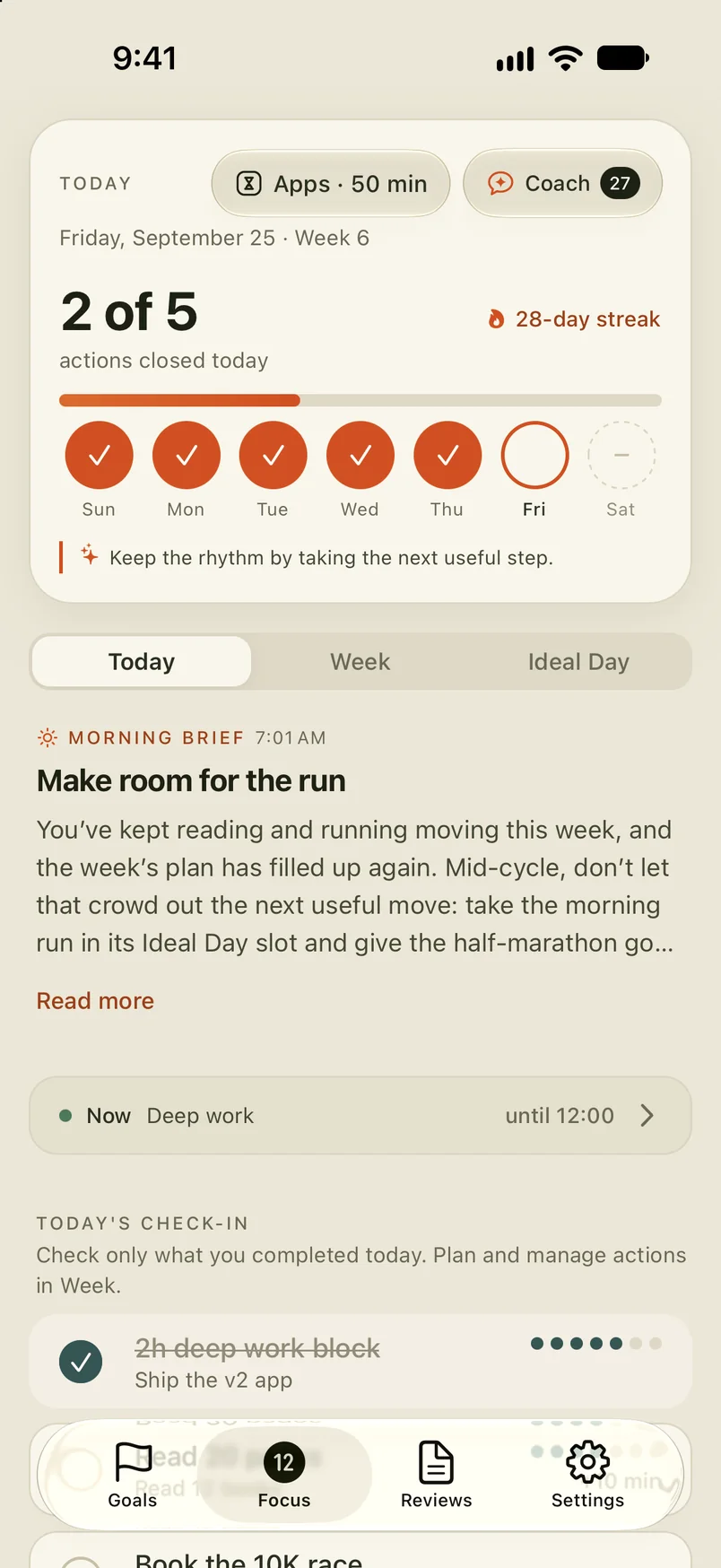
Every lock above is one you set and one you can undo. 12Focus gives the apps you pick a daily allowance, then adds minutes each time you tick off a study action you planned. On iPhone it works through Apple’s Screen Time. More on studying with 12Focus.
Apps today min
What people ask before they lock
Can I lock apps on iPhone without downloading anything?
Yes. Screen Time is built into every iPhone: Time Allowances and Screen Time Schedule on iOS 27, App Limits and Downtime on iOS 26 and earlier. Guided Access locks the screen to one app.
Where did App Limits and Downtime go in iOS 27?
They were rebuilt. App Limits became Time Allowances, which limit categories of apps, and Downtime became Screen Time Schedule. Always Allowed kept its name. Apple requires version 27 on every Apple device on your account for the new tools; until then, use App Limits and Downtime.
Can I limit one app instead of a whole category?
On iOS 27, add a Custom category in Time Allowances → Manage Categories and choose the apps for it. On iOS 26 and earlier, App Limits → Add Limit lets you pick single apps.
How do I stop myself from just changing the limit?
Lock the settings with a Screen Time passcode that someone else types: a friend, a flatmate, a parent. If you set the code yourself, you can always undo the lock.
Does a Focus block apps on iPhone?
No. A Focus silences notifications from the apps you choose, but you can still open them. Pair it with a Screen Time Schedule if you want the apps closed as well as quiet.
How do I do this on Android?
Android has its own tools: Focus mode, App timers and App pinning. Here are the steps for Android.
Your best hours go to chapter 3
12Focus gives the apps you choose a daily allowance and adds minutes each time you finish a study action you planned, on iPhone and on Android.